
Company management
CRUD, bulk CSV import, and search for the company catalog.
The Companies tab in the Admin Dashboard is where you curate the public catalog that end users follow.
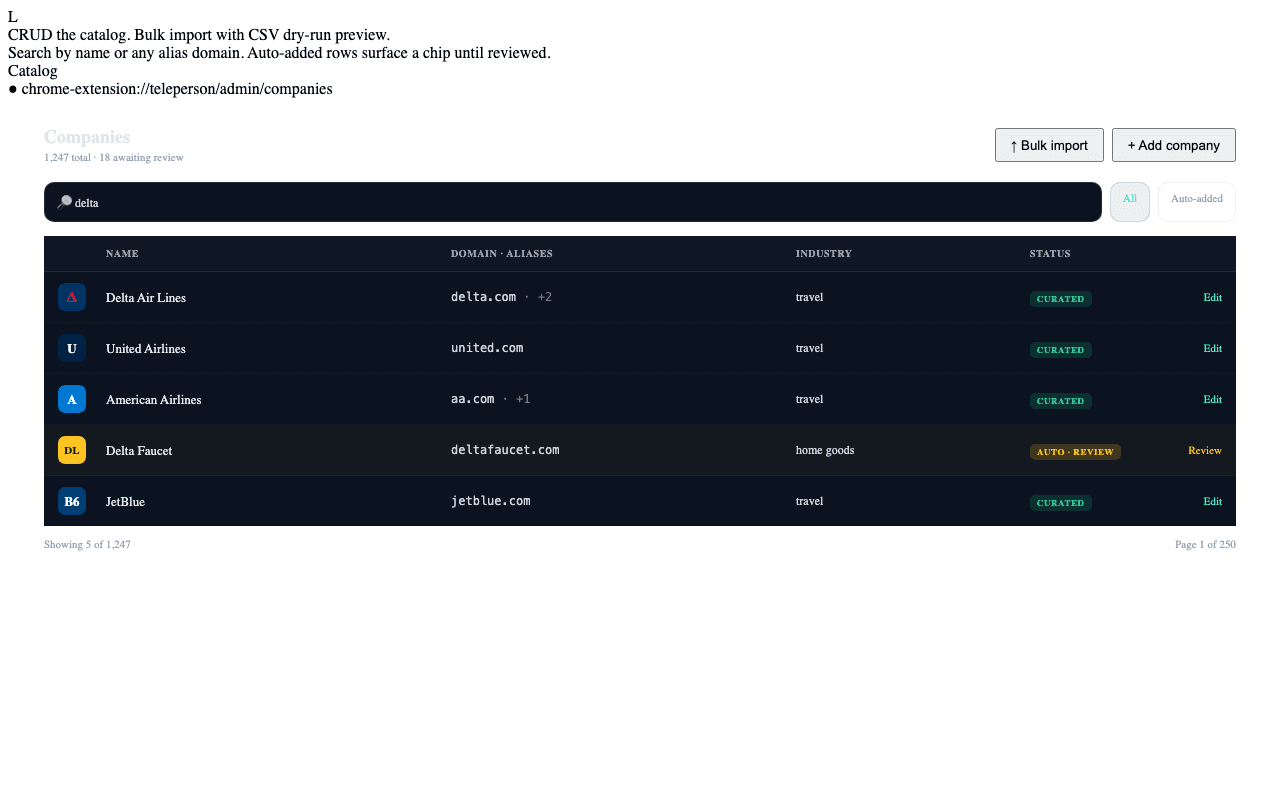
Adding a single company
Click + Add company. Fill in:
- Name (required) — display name.
- Domain (required) — primary domain (e.g.
delta.com). Used for auto-detection match. - Aliases — comma-separated additional domains (e.g.
delta-air.com,flydelta.com). All resolve to this single catalog entry. - Industry — one of the curated taxonomy values.
- Logo URL — optional override for the auto-fetched logo.
- Description — optional override for the auto-generated AI Overview description.
The new entry is visible to all users immediately and queued for AI Overview generation if no description was provided.
Editing a company
Click any row to open the editor. You can edit any field. Saved changes audit-log automatically.
Bulk import
Click Bulk import. The CSV format:
name,domain,aliases,industry,logo_url,description
Delta Air Lines,delta.com,"delta-air.com,flydelta.com",travel,,
Stripe,stripe.com,,fintech,,Online payments and financial infrastructure.
The dry-run preview shows what would be created, updated, or rejected (duplicate domains, malformed rows). You can drill into any row and fix it before committing the import.
Search
The search box at the top filters by name or any domain (primary or alias). The query is debounced and runs server-side against an indexed query.
Auto-added companies
Companies created by the Auto-detection
flow appear with a auto_added chip. They're hidden from the public catalog
browse list until an admin reviews them. Click the chip to mark as reviewed
or mark as duplicate (which merges it into an existing entry).
Deletion
Deleting a company is hard — it removes the catalog entry, but doesn't delete the AI overview cache (so the work isn't lost if the company is re-added later) or any user-followed-company rows that referenced it (those go to a soft-deleted state).
To fully purge a company including caches, use the Hard delete option in the Confirm dialog. This is logged with elevated audit detail.
Related
- Auto-detection → — how unmapped sites become catalog entries.
- IVR builder → — attach a Verified Call Tree to a company.