
Quickstart — your first Company Hub
From zero to a personalized support console in five minutes.
This walkthrough takes you from a fresh install to a working Company Hub with at least one followed company.
1. Open the panel
Click the Teleperson icon in your browser toolbar. The side panel slides in from the right. If you've just installed, you'll see a sign-in screen.
2. Sign in or sign up
Teleperson uses email + password authentication backed by Supabase Auth. New accounts go through a brief onboarding form (first name, age range, what you're hoping to use Teleperson for) — all fields are optional except your name.
After verifying your email you'll land on the Company Hub.
3. Add your first company
You have two ways to follow a company:
- From catalog — search the curated public directory. Click Follow on any company; it appears in your Hub immediately.
- From the current page — visit a supported company's website (try
delta.com,chase.com, orbestbuy.com). The extension auto-detects the company and offers an Add to Hub chip in the panel header.
If a company isn't in the catalog yet, the extension scrapes a summary, registers the new company in the shared directory for everyone, and adds it to your Hub.
4. Open the Dashboard tab
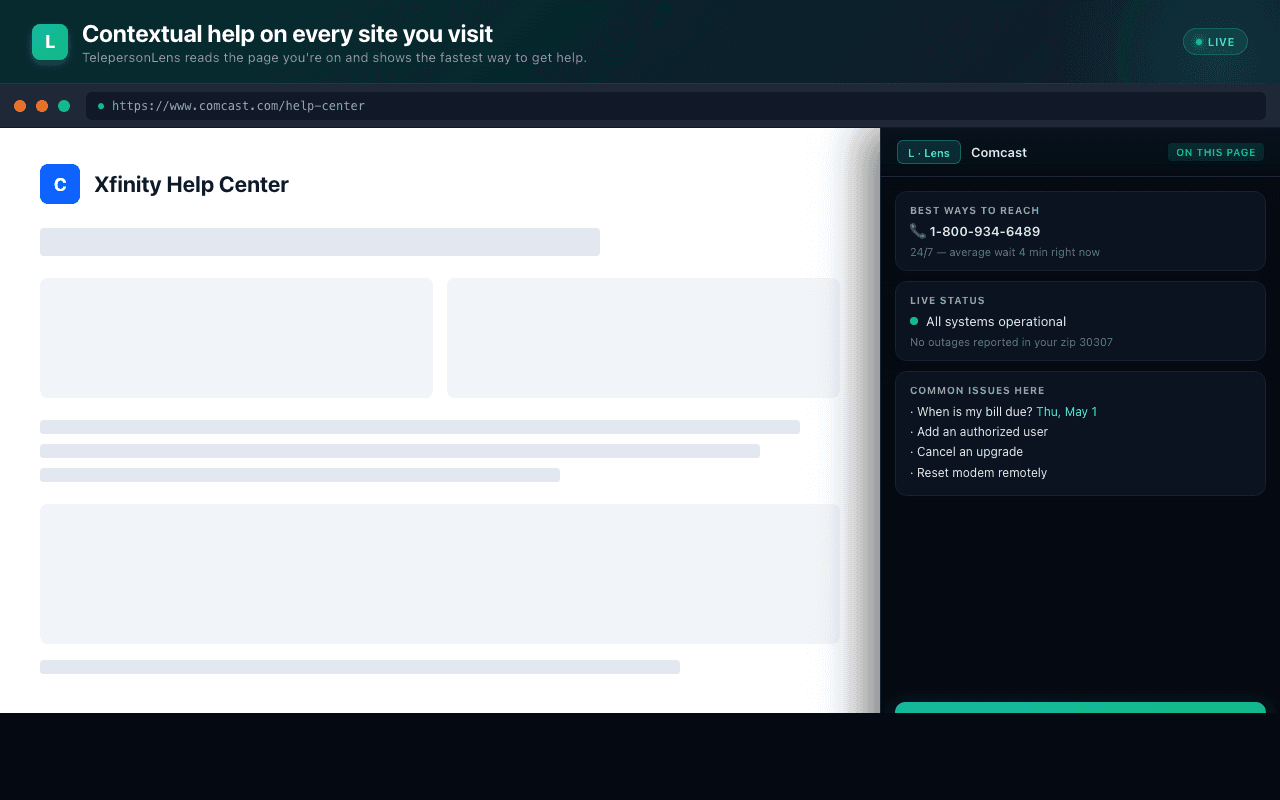
With at least one company followed, navigate to that company's website. The panel switches to the Vendor Hub view. The rail on the right shows four primary tabs — Dashboard, Vendor Hub, Summary, and Purchases — with a More (•••) button that opens the rest (Subscriptions, Net Worth, Credit, Mail, and more). Click the Dashboard tab to see:
- A Claude-generated description (cached at the company level, so the first user to land on a new site pays the token cost; everyone after gets it free).
- HQ, employee range, revenue range, founded year.
- The top reasons people visit this company.
5. Try Ask AI
Click the Ask AI button at the top of the panel. You can:
- Type a natural-language question (e.g. "How do I dispute a charge?").
- Click any of the AI-generated quick-start bubbles.
Replies render as proper Markdown — bullets, bold, links — and are grounded in the company's overview plus your profile.
6. Try the Voice Concierge (optional)
If your account has Voice Concierge enabled, you'll see a Call button next to Ask AI. One click starts a real-time voice conversation with an ElevenLabs agent that knows your name, plan, and entire followed-company list.
What's next
- Company Hub overview → — manage your followed companies.
- AI Company Overview → — what gets generated and cached.
- Voice Concierge → — when and how to use it.